
0. Getting Started
Downloading and installing from the unity asset store
1 min read


Once you have purchased the package on the Unity Asset Store the open in unity button will be shown on the right, beneath the assets name. Click this button
Step 1 - Opening in Unity
Step 2 - Downloading from the package manager
This will open the Procedural Growing Trees Package in the Unity Package Manager. Click the download button.


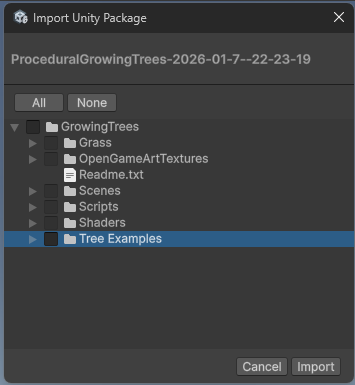
Next you select what to import into your project. The Grass, OpenGameArtTextures, Scenes, and Tree Examples are all optional for demo purposes only and make up the bulk of the size of the package. The Scripts and Shaders are both required for the package to work.