
2. Tune your tree
Customising the way the tree forms, its size, branching, growth, ageing etc.
2 min read
Once you have a tree prefab from the wizard in section 1 drag that into your scene
Step 1 - Drag your prefab into the scene

Step 2 - Initialise the Tree
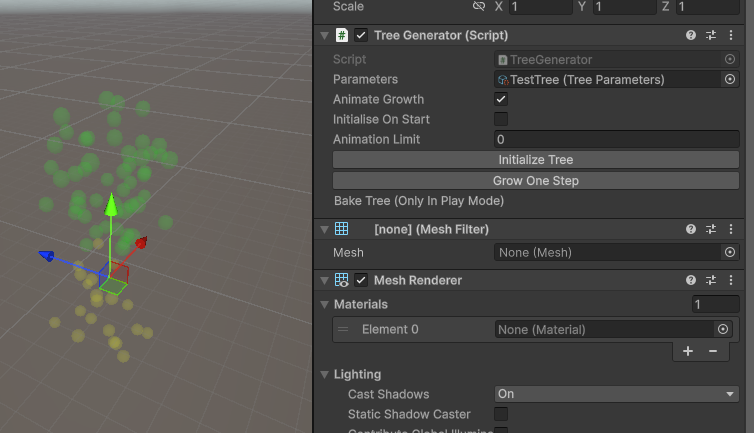
If you click initialise tree it will show where the initial attraction points will go for branches (green dots) and roots (yellow dots). And what parts of the tree will grow initially (white normal branch, blue top of the trunk, pink bottom of the tap root)
Step 3 - Grow the Tree
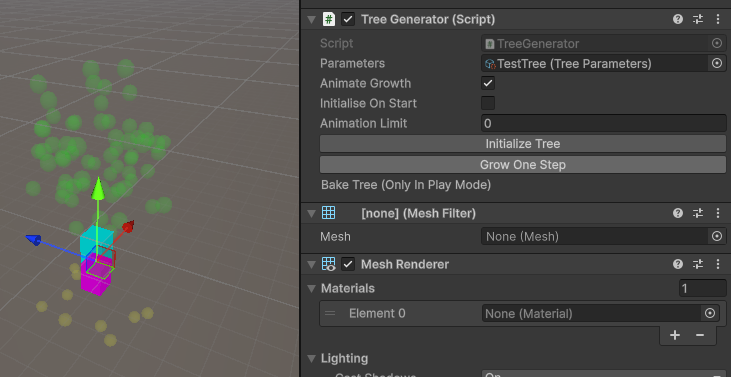
You can click grow one step to see how the tree will grow, initalise tree will restart the growth process. This will show what parts of the tree will grow initially (white normal branch, blue top of the trunk, pink bottom of the tap root)
Step 4 - Customise the tree parameters
You should then select the tree parameters object, there is a lot of settings in here, most should have tooltips if they are not obvious what they do. Change the settings, re-initalising and growing the tree to see how they effect the tree growth.
Step 5 - Render in play mode
Once you are happy with it you can press play (when you initalise tree in play mode it will grow automatically if animate growth is ticked).
Step 6 - Change render settings
On both the tree object and the leaves object there is a tree mesh controller. This takes the tree object and draws a mesh via a marching cube renderer.
There are parameters in here for the mesh generation, you can play with them and the mesh will update.
Step 7 - Change shader settings
Next there are shader settings both the tree mesh and leaf mesh have a material that have many settings to customise. I tend to add textures to the tree mesh if I want a realistic look, with a tessellation factor if I want to use height map displacement.
For the leaves I like to add some tessellation if I am going to use the noise based displacement. The colour settings in the leaf shader are driven by the leaf colour controller if it is present (which in turn grabs it from the leaf parameters).
Step 8 - Change leaf settings
Finally there are the leaves parameters which are also only visible at runtime, configure this along with the tree mesh renderer for the leaves until you are happy with their appearance.